Codigo77 Login Guide: Accessing Your Account on Mobile and Desktop
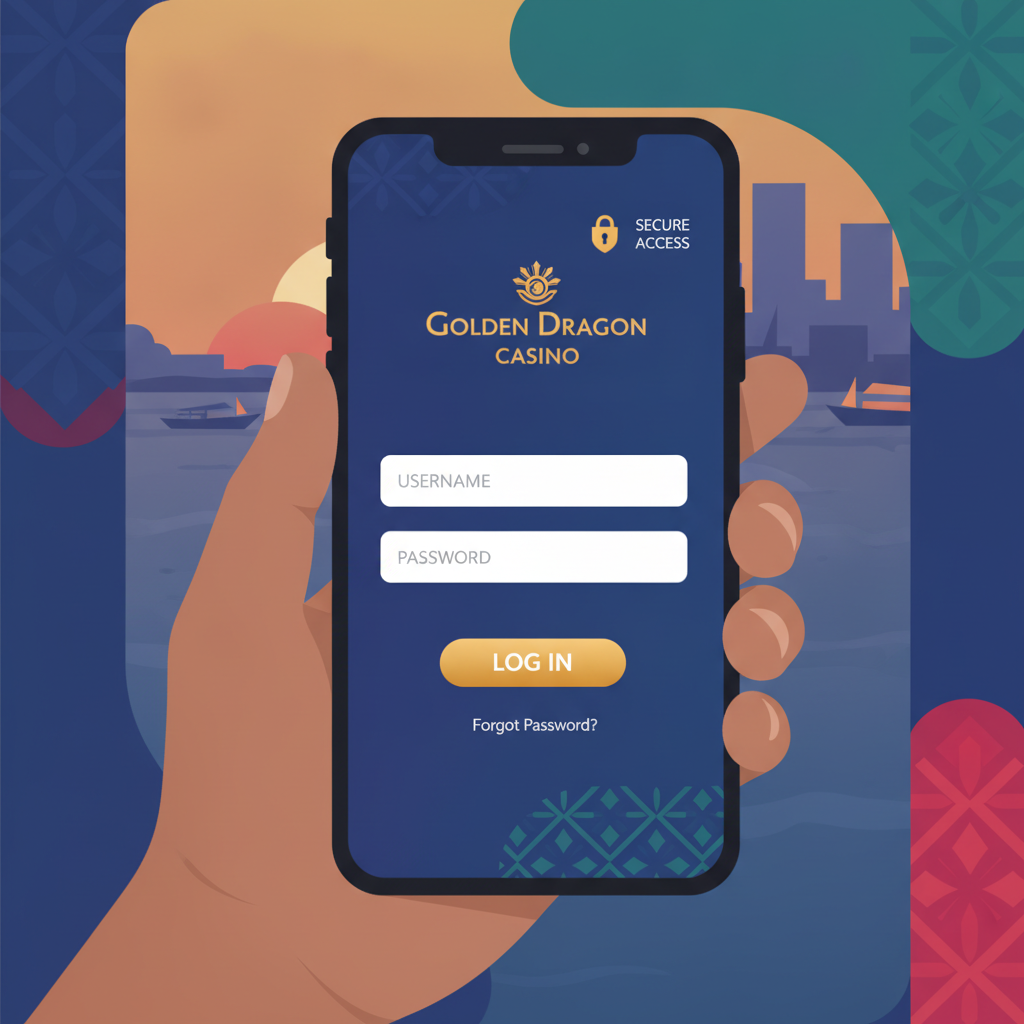
Where to Find the Codigo77 Login Page
Once you've completed your Codigo77 register process, logging in to place bets or play slots is straightforward. The login page sits in the same place whether you're using an Android phone or a desktop browser.
Open your mobile browser (Chrome, Firefox, or Safari) and go to the Codigo77 homepage. At the top-right corner of the screen, you'll see a Login button—usually labeled clearly in English. Tap it, and a login form will appear either as a pop-up overlay or on a new page, depending on the device.
On desktop, the Login button is also at the top-right of the homepage. Click it to open the same form. Codigo77 does not require you to download a separate app to log in; the mobile site works directly in your browser.
If you bookmarked the Codigo77 register page when you signed up, the login link will be visible there too. Many Filipino players save the homepage to their Android home screen for quicker access—just tap the three-dot menu in Chrome, select "Add to Home screen," and the site icon will behave like an app shortcut.
Entering Your Username and Password on Android Phones
When the login form loads, you'll see two fields: one for your username or email, and one for your password.
Type the exact username you chose during Codigo77 register. If you registered with your email address, you can usually enter that instead. Be careful with capitalization—some systems treat "Player123" and "player123" as different usernames.
Next, tap the password field. Your Android keyboard will appear. Make sure your password is entered exactly as you set it, including uppercase letters, numbers, and symbols. If you saved your password in Chrome or your phone's autofill settings, you may see a suggestion above the keyboard; tap it to fill the field automatically.
Below the password field, you may see a Remember Me checkbox. Ticking this keeps you logged in for future visits, so you won't need to re-enter your credentials every time. Only use this on your personal phone—never on a shared or public device.
Once both fields are filled, tap the Login or Sign In button. If your details are correct, Codigo77 will redirect you to the lobby, where you can choose slots, live dealer games, or sports betting on PBA and NBA matches.
What to Do If Login Fails: Common Fixes for New Users
If you see an error message like "Invalid username or password" or "Login failed," don't worry—these issues are usually easy to fix.
Check your spelling and capitalization. Mistyped usernames and passwords are the most common login problems. Re-enter both carefully. If you're unsure of your password, use the Forgot Password link on the login page. Codigo77 will send a reset link to the email address you registered with.
Clear your browser cache. Sometimes old session data can interfere with login. On Android Chrome, tap the three dots, go to Settings > Privacy and security > Clear browsing data, select "Cookies and site data" and "Cached images and files," then tap Clear data. Return to the Codigo77 login page and try again.
Try a different browser. If you registered on Chrome but are now using a different browser, switch back to Chrome. Some players find that using the same browser they used for Codigo77 register avoids session conflicts.
Check your internet connection. A weak signal can time out the login request. Switch from mobile data to Wi-Fi, or vice versa, and reload the page.
Wait a few minutes if you entered wrong credentials multiple times. Codigo77 may temporarily lock login attempts after several failed tries, as a security measure. Wait 10–15 minutes, then try again.
If none of these steps work, contact Codigo77 customer support through the live chat link on the homepage. Have your registered email address and username ready so the support team can verify your account.
Staying Logged In Safely on Your Device
Staying logged in to Codigo77 on your Android phone is convenient, but it's important to do it safely—especially when you're depositing PHP 100–500 via GCash or Maya.
Use the Remember Me option only on your personal phone. This feature stores a session token in your browser, so you won't need to log in every visit. It's safe as long as your phone is password-protected or uses fingerprint unlock.
Enable screen lock on your Android device. Go to Settings > Security > Screen lock and choose a PIN, pattern, or biometric lock. This prevents anyone else from accessing Codigo77 if you leave your phone unattended.
Don't share your login details. Even with friends or family, keep your username and password private. If someone else places bets on your account, you remain responsible for any activity.
Use a strong, unique password. Avoid obvious choices like "password123" or your birthday. Mix uppercase and lowercase letters, numbers, and symbols. If you find it hard to remember, consider a password manager app like Google Password Manager, which is built into Android Chrome.
Check the URL before entering your password. Make sure you're on the real Codigo77 site, not a copycat phishing page. The web address should match the official domain. Bookmark the homepage to avoid typing the URL manually each time.
21+ Reminder and Logout Best Practices
Codigo77 is for players aged 21 and over only. If you are under 21, you are not permitted to register or log in. Codigo77 may ask for ID verification at any time to confirm your age and identity. Have a valid Philippine government ID ready—such as a driver's license, passport, or UMID—if the platform requests it.
Responsible gambling reminder: Set limits on how much time and money you spend. Codigo77 offers entertainment, not guaranteed winnings. If you feel you're losing control, take a break or seek support from organizations like Gamban or BeGambleAware Philippines.
Always log out when using a shared or public device. If you borrow a friend's phone or use a computer at an internet café, click the Logout button in the top-right menu before you close the browser. This ensures no one else can access your account or see your balance.
On your own phone, logging out is optional but recommended if you share the device. Even with screen lock enabled, logging out adds an extra layer of security. To log out, tap your username or profile icon at the top of the Codigo77 homepage, then select Logout or Sign Out from the dropdown menu.
After you log out, close the browser tab. On Android, swipe away the Codigo77 tab from your recent apps to clear the session fully. This prevents cached data from showing your account details if someone else opens the browser.
If you suspect unauthorized access, change your password immediately. Use the Forgot Password link or go to your account settings while logged in. Choose a new, strong password, then log out and log back in to confirm the change.
By following these Codigo77 login best practices, you'll protect your account and deposits while enjoying slots, jackpot games, live dealer tables, and PBA or NBA sports betting. Remember to gamble responsibly, verify your identity when asked, and keep your login details secure. Whether you're on an Android phone in Metro Manila or using desktop in the provinces, Codigo77's login process is designed to be fast and straightforward for Filipino players depositing in pesos through GCash, Maya, or bank transfer.